User Permissions
Control which menu items and reports each staff login can access
User Permissions let an admin decide exactly what each staff login can see in the NxCut sidebar — the Dashboard, Reports, Website, and Commission pages. You can also pick which individual cards or reports they see inside Dashboard and Reports.
The rule is simple: if all of a section's toggles are off, that menu link is hidden from the staff member's sidebar. If at least one toggle in a section is on, the link shows up.
All permission toggles save automatically in real time. As soon as you flip a switch, the change is saved instantly.
Opening a staff member's permissions
From the Calendar (home), go to Settings in the left menu.
In the Settings sub-menu, click Permissions.
You'll see a card for each staff login at this branch. Click Add permissions on the staff member you want to configure.
Toggle the options you want on or off (described below).
Changes save immediately. The next time the staff member opens the app or reloads their screen, their sidebar will reflect their updated access.
Permissions are set per staff login. If you have multiple staff who should share the same access, you'll need to set them individually.
Dashboard access
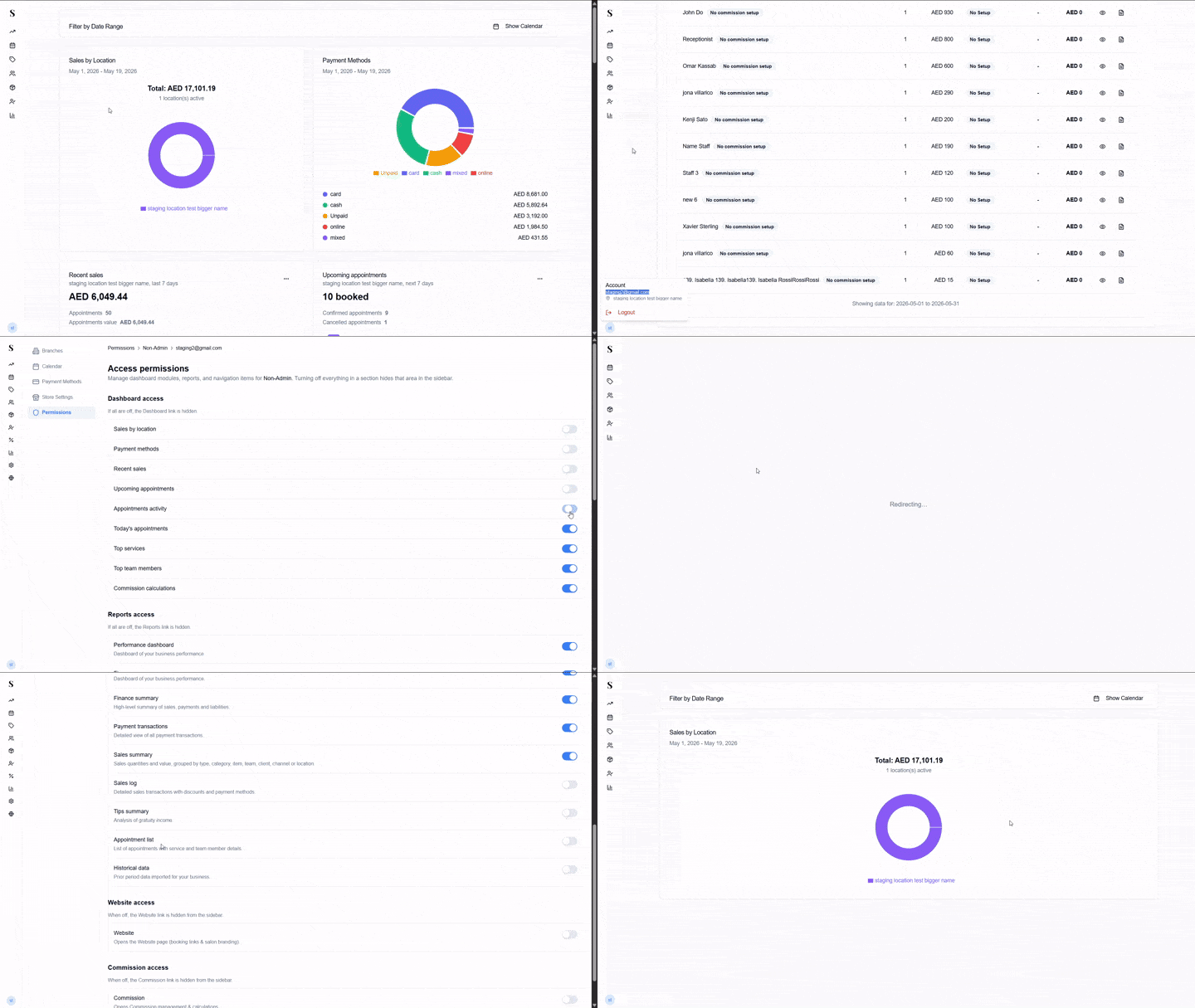
Controls what the staff member sees on the Dashboard page. Each toggle is an individual card or widget on the dashboard.
If all of these toggles are off, the Dashboard link disappears from the staff member's sidebar entirely.
| Toggle | What it shows |
|---|---|
| Sales by location | Breakdown of sales across your branches. |
| Payment methods | Sales totals grouped by how clients paid. |
| Recent sales | A list of the most recent completed sales with 7-day trends. |
| Upcoming appointments | The next set of appointments on the calendar. |
| Appointments activity | Activity trend over time for appointments. |
| Today's appointments | All of today's bookings at a glance. |
| Top services | The best-performing services by volume or revenue. |
| Top team members | The best-performing staff. |
| Commission calculations | Commission totals for the staff. |
| Sales Prediction | 4-month rolling average forecast to see upcoming sales trajectory. |
| Occupancy | 6-month historical branch capacity and chair occupancy tracking. |
Reports access
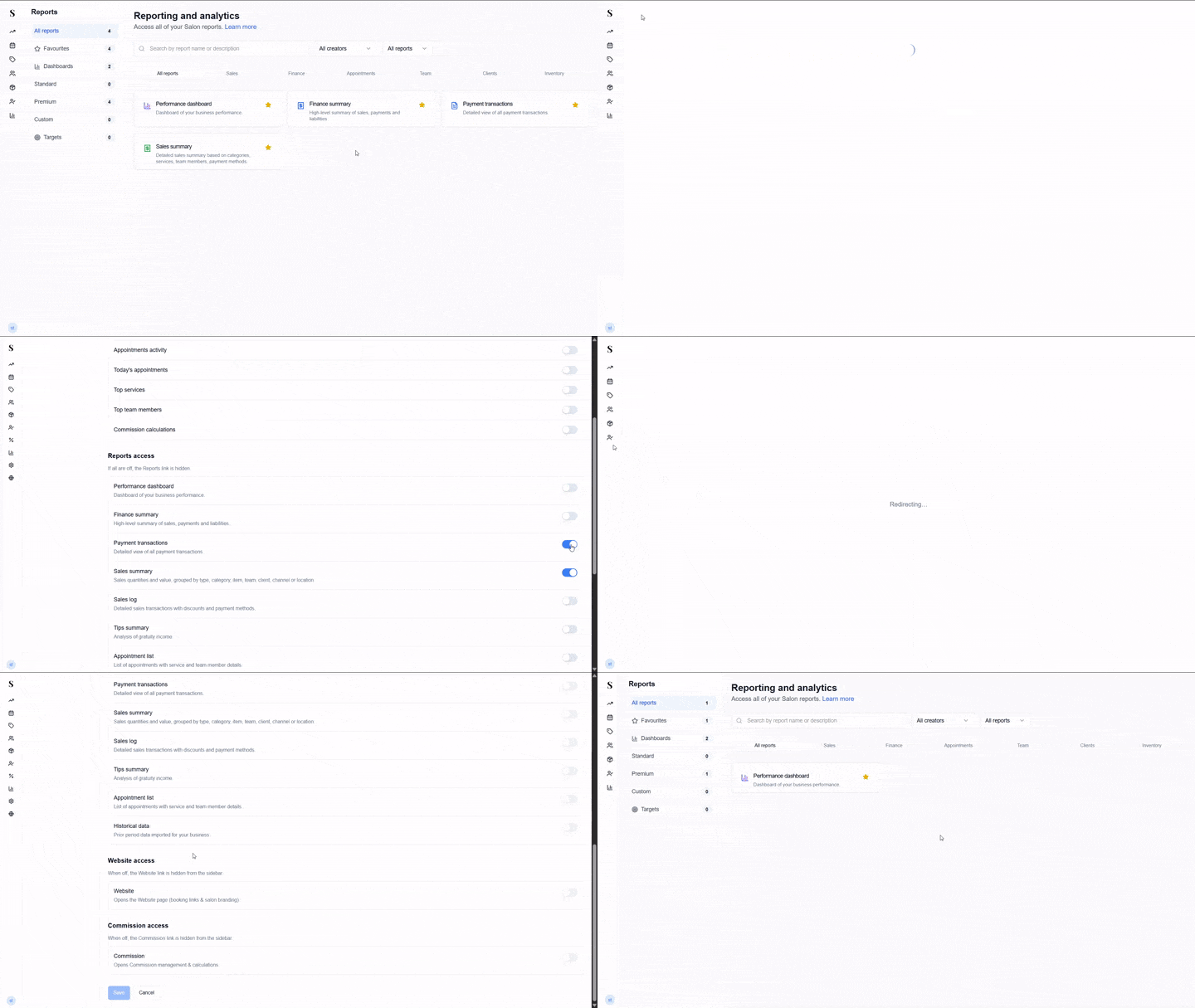
Controls what the staff member sees on the Reports page. Each toggle is an individual report.
If all of these toggles are off, the Reports link is hidden from the staff member's sidebar.
| Toggle | What it opens |
|---|---|
| Performance dashboard | Overall visual business performance dashboard. |
| Finance summary | High-level summary of sales, payments, and liabilities. |
| Payment transactions | Detailed log of all payment transactions and tenders. |
| Sales summary | Sales quantities and value, grouped by type, category, item, team, or channel. |
| Sales log | Detailed sales transactions with discounts and payment methods. |
| Tips summary | Analysis of gratuity income per team member. |
| Appointment list | List of appointments with service and team member details. |
| Historical data | Prior period data imported for your business. |
| Expense Log | Track all salon expenses by category, date, and payment source. |
| Outstanding Clients | Track clients with unpaid or part-paid appointment balances. |
| Working Hours | Monitor staff shifts, worked hours, and scheduling availability. |
| Liability Report | Track unredeemed prepaid packages, active vouchers, and liability balances. |
| Insight Client Reports | Deep analytics on individual client visit patterns, habits, and preferences. |
Cross-Branch & Role Permissions
You can also control whether staff members have multi-location privileges:
| Toggle | What it does |
|---|---|
| Cross-Branch Access | Allows staff to view and edit appointments and sales across other salon branches without needing separate logins. |
| Receptionist Location Management | Allows front-desk staff to reassign a staff member's working branch from another location (ideal for staff covering shifts across branches). |
Website access
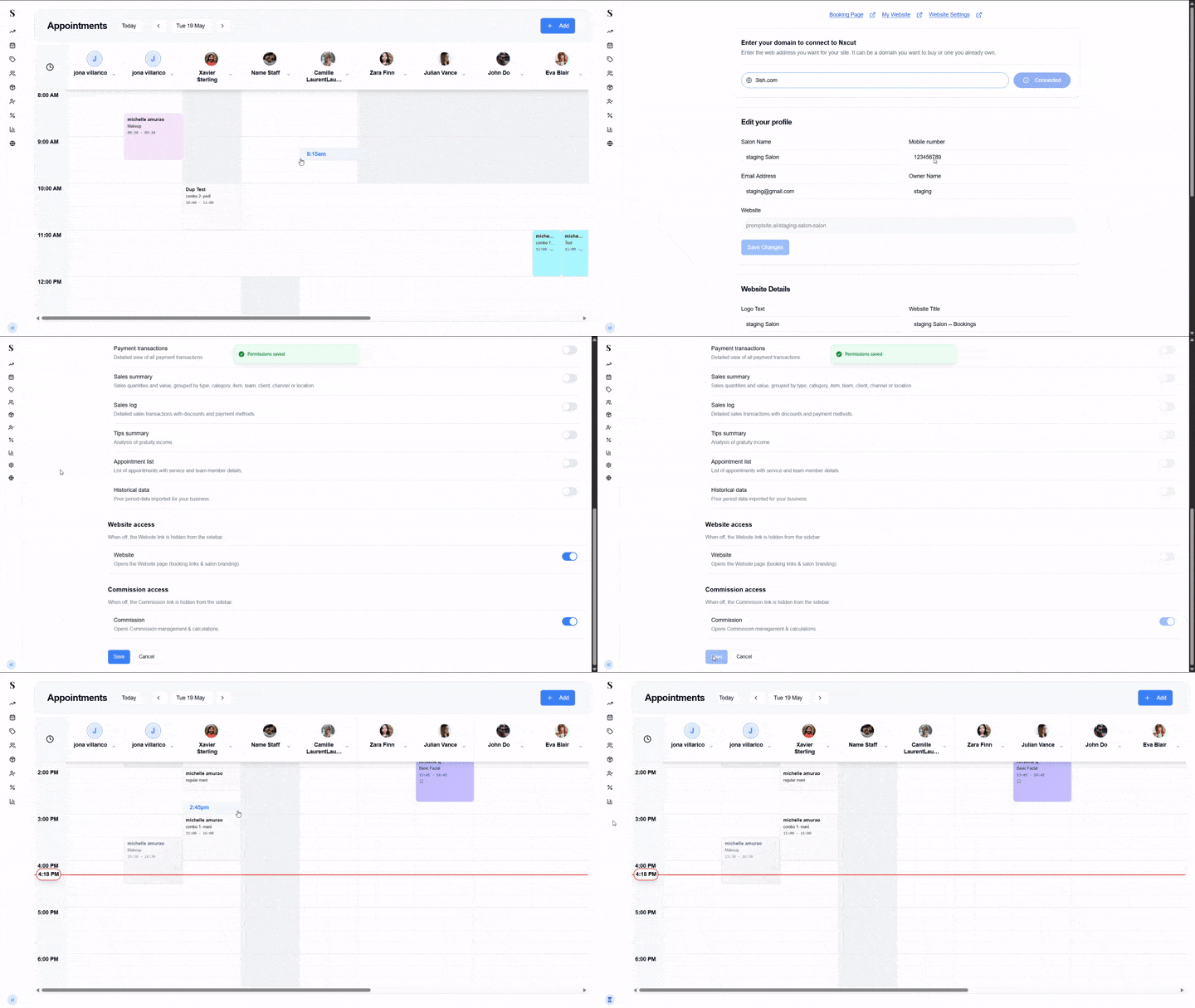
A single toggle that controls whether the staff member can open the Website page (booking links and salon branding).
When the Website toggle is off, the Website link is hidden from the staff member's sidebar.
Commission access
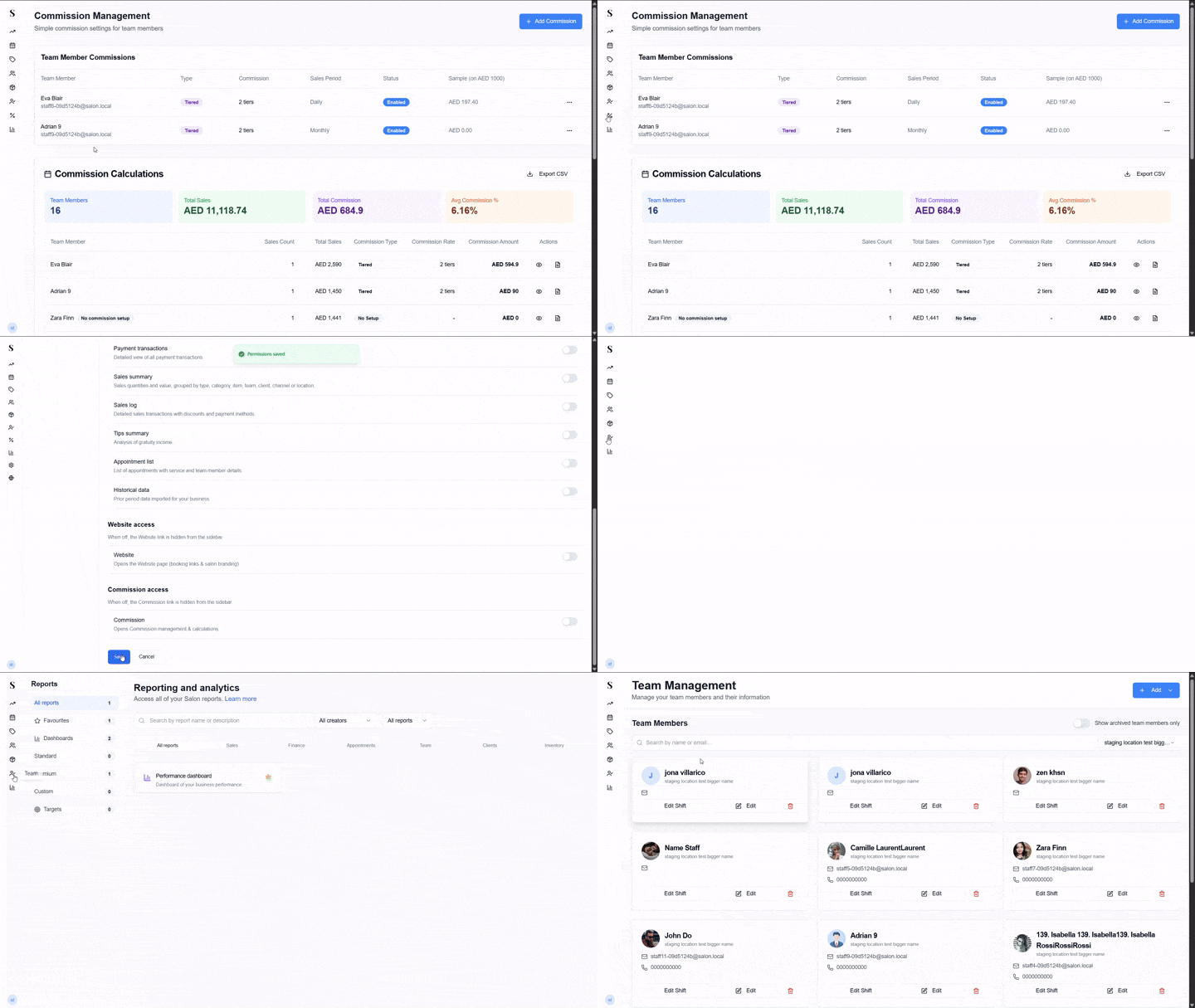
A single toggle that controls whether the staff member can open the Commission page (commission management and calculations).
When the Commission toggle is off, the Commission link is hidden from the staff member's sidebar.