Thermal Printing
Set up and use thermal receipt printing in NxCut on Windows and macOS
NxCut supports thermal receipt printing in two ways. The recommended path is the Print Bridge — a lightweight background app you install once on your salon PC or Mac. If you prefer not to install anything, the browser-based WebUSB path is still available as a fallback.
Which method should I use?
| Print Bridge | WebUSB (browser) | |
|---|---|---|
| Installation required | Yes — one-time | No |
| Windows & macOS compatibility | Yes | Limited (Chrome/Edge only) |
| Works with Windows & Mac printer drivers | Yes | No |
| Works with Star Micronics & ESC/POS printers | Yes | No |
| Works with COM port printers | Yes | No |
| Requires Zadig driver swap | No | Yes (Windows only) |
| Prints silently (no popups) | Yes | No — browser asks on first use |
| Re-prints with Enter key | Yes | Yes |
Recommendation: Use the Print Bridge. It works with any printer that Windows or macOS already recognises, prints silently after checkout, and requires no browser configuration.
Option 1 — Print Bridge (recommended)
Step 1: Install the app
-
Download the NxCut Print Bridge installer for your operating system:
- Download NxCut Print Bridge for Windows (.exe)
- Available for macOS — download and drag to your Applications folder.
-
Once installed, the app starts automatically and appears in your system tray (Windows taskbar) or menu bar (macOS).
Step 2: Allow network access in NxCut
The first time you use thermal printing in NxCut, the browser will show a security prompt:
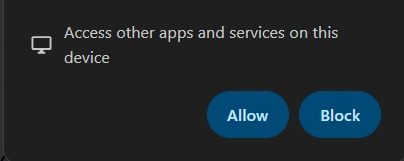
"Access other apps and services on this device"
Click Allow. This lets the NxCut web app communicate with the Print Bridge running on your computer. Without this, printing will not work.
Step 3: Select your printer and run a test print
-
Right-click the tray or menu bar icon and choose Open Settings.
-
In the Printer dropdown, find your printer. Printers are grouped:
- System Printers (Windows / macOS) — any printer installed on your operating system (including standard ESC/POS thermal printers, Star Micronics printers, and AirPrint/CUPS queues). Start here.
- Serial / COM ports — if your printer connects via a serial COM port.
- USB devices (WinUSB) — only if using raw USB on Windows via Zadig.
-
Select your printer model type (Standard ESC/POS or Star Micronics) and click Save.
-
Click Test Print. Your printer should produce a test slip:
NxCut Print Bridge Test Print OK -
Once verified, enable Start on login so the bridge runs in the background whenever the computer starts.
Supported Printers & Star Micronics
NxCut supports standard ESC/POS 80mm and 58mm thermal printers (Epson, POS-80, Xprinter, Rongta, etc.) as well as Star Micronics receipt printers (Star TSP100, TSP650, mC-Print series). Select the correct printer protocol in settings for crisp receipts and fast auto-cutting.
Auto-Printing at Checkout & Quick Sale Cart
When a payment is completed in NxCut:
- Appointment Sales: The receipt transmits silently to the printer immediately upon clicking Pay.
- Quick Sale Cart: Selling retail products, gift vouchers, or membership packages directly through the Sale Cart automatically triggers a thermal receipt print via the Print Bridge — no extra clicks needed.
Re-printing a receipt
On any completed sale:
- Press Enter on your keyboard while viewing the completed sale to silently reprint the thermal receipt.
- Or open the sale, click the print icon, and choose Thermal Print from the receipt preview dialog.
Troubleshooting
Printer not in the dropdown
- Click the refresh button next to the dropdown in the bridge settings.
- For Windows/Mac: confirm the printer appears in system settings (Printers & Scanners).
Test print does nothing
- Check physical USB cables, ensure the printer is turned on and loaded with 80mm or 58mm thermal paper.
- Confirm the printer is not paused or showing offline in your system settings.
Star Printer formatting issues
- Ensure you selected Star Micronics in printer settings rather than generic ESC/POS.
Bridge not starting / tray icon is red
- Port 7070 may be in use by another program. Open bridge settings → Advanced and set the server port to 7071 or 7072. NxCut automatically connects to available bridge ports.