Sales Hub
View, filter, and export your full sales history — appointments, payments, memberships, vouchers, products, tips, expenses, and balances
The Sales Hub is your complete record of everything that's been sold, paid for, or spent. Click Sales in the left menu and you'll see a sidebar with ten sections. Each one is focused on a different part of your business and has its own search, date filter, and Export button.
Daily Sales
Sales → Daily Sales
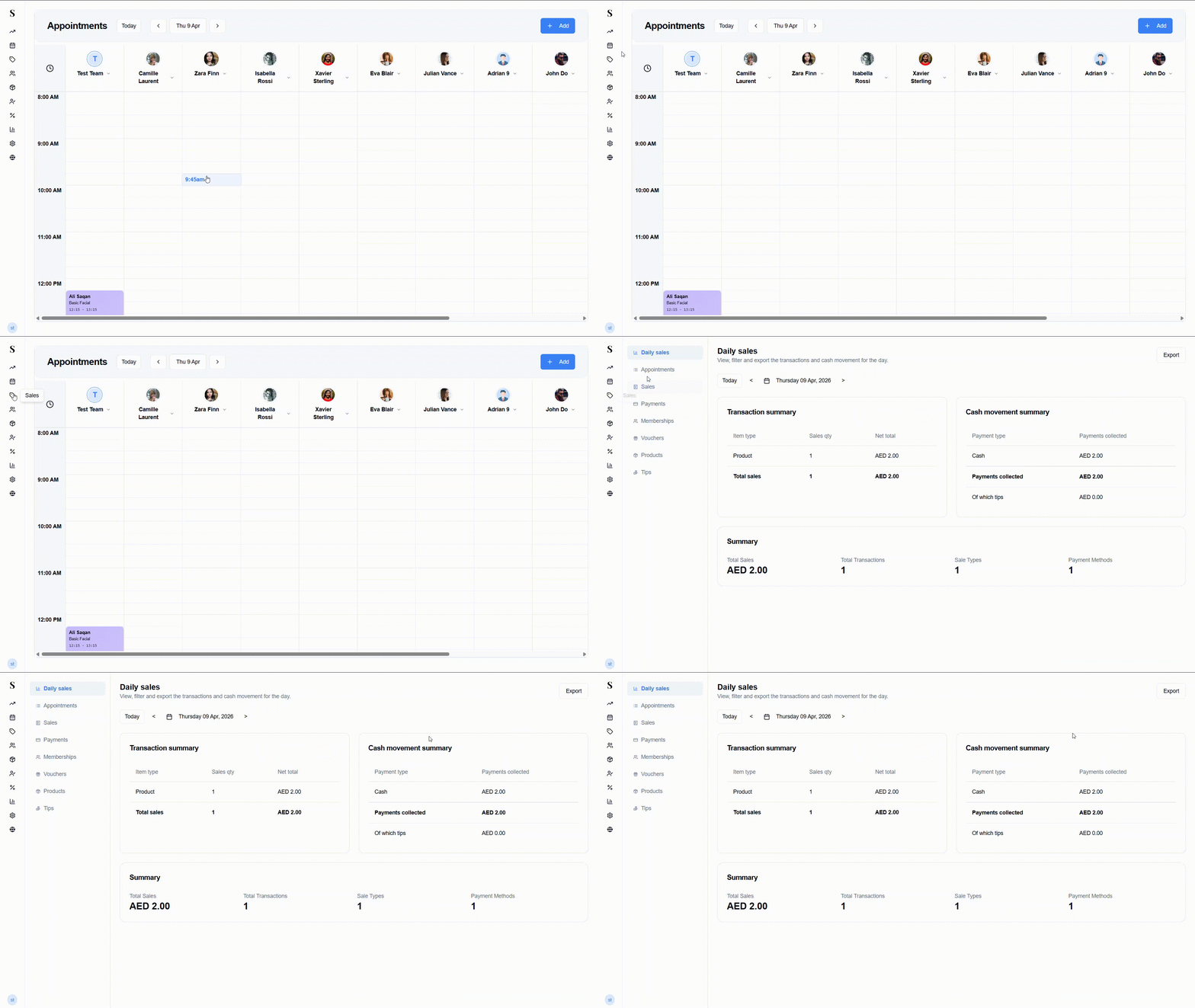
Your end-of-day summary. Use the Today, <, and > buttons to pick any day and see a full breakdown of what happened.
The screen includes full calculation transparency, showing step-by-step breakdowns of gross revenue, discounts, VAT, and net totals to eliminate any confusion when balancing the till.
The page is split into three parts:
Transaction summary A table showing what was sold by item type (e.g., Service, Product, Membership, Voucher), how many were sold, and the net total.
Cash movement summary A breakdown of how payments were collected — showing each payment method (Cash, Online, Card, Split, etc.) and the amount collected through each. It clearly shows total Payments collected, how much of that was tips, and separates part-paid or unpaid balances so your cash drawer stays perfectly balanced.
Summary bar Four quick-view numbers at the bottom:
- Total Sales — total revenue for the day
- Total Transactions — number of completed transactions
- Sale Types — how many different item types were sold
- Payment Methods — how many different payment methods were used
Appointments
Sales → Appointments
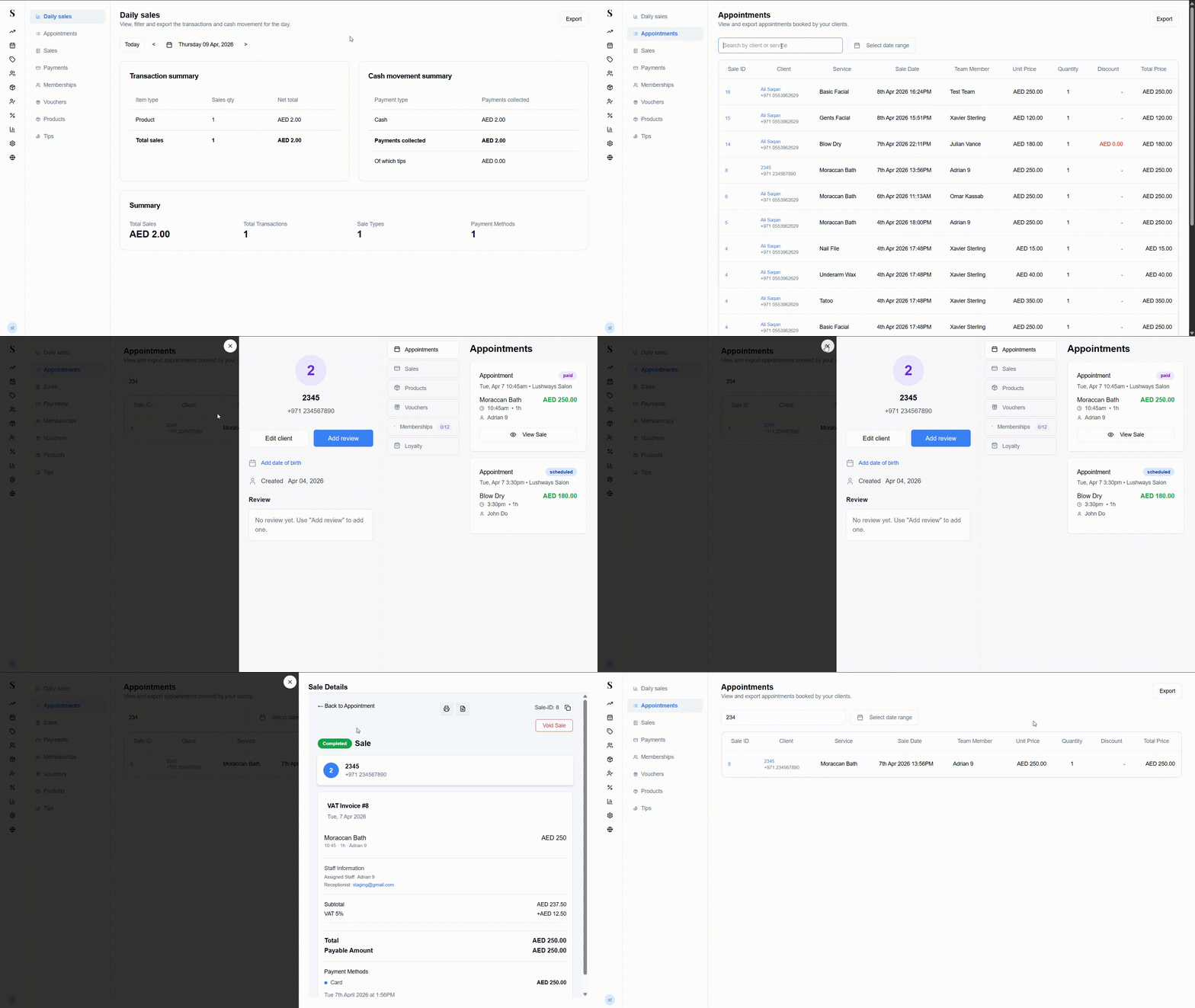
A full list of every appointment-based sale. Use this when you need to look up a specific service, client visit, or check what was charged and whether a discount was applied.
Columns: Sale ID · Client (name + phone) · Service · Sale Date · Team Member · Unit Price · Quantity · Discount · Total Price
Discounts show in red when applied. Search by client name or service, or filter by date range. Click Export to download as CSV or Excel (dates and appointment times are separated into distinct columns for easy spreadsheet sorting).
Sales Transactions
Sales → Sales
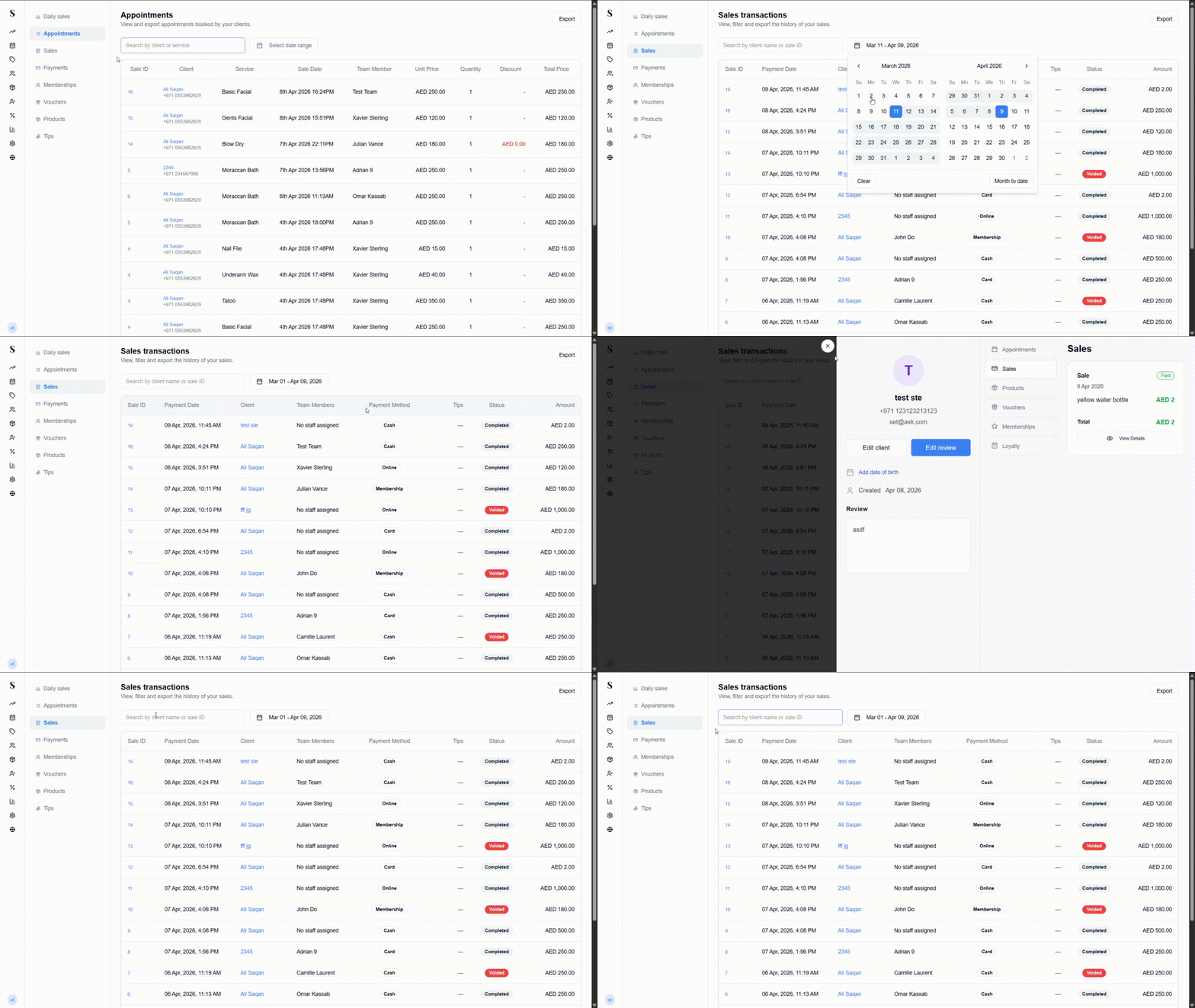
Your complete transaction history across all sale types. By default it shows the last 30 days.
Columns: Sale ID · Payment Date · Client · Team Members · Payment Method · Tips · Status · Amount
The Status column shows either:
- Completed — the sale went through successfully
- Voided (red badge) — the sale was reversed after the fact
Click any Sale ID to open the full Sale Details panel.
Click any Client name to open their Client Profile.
Payments
Sales → Payments
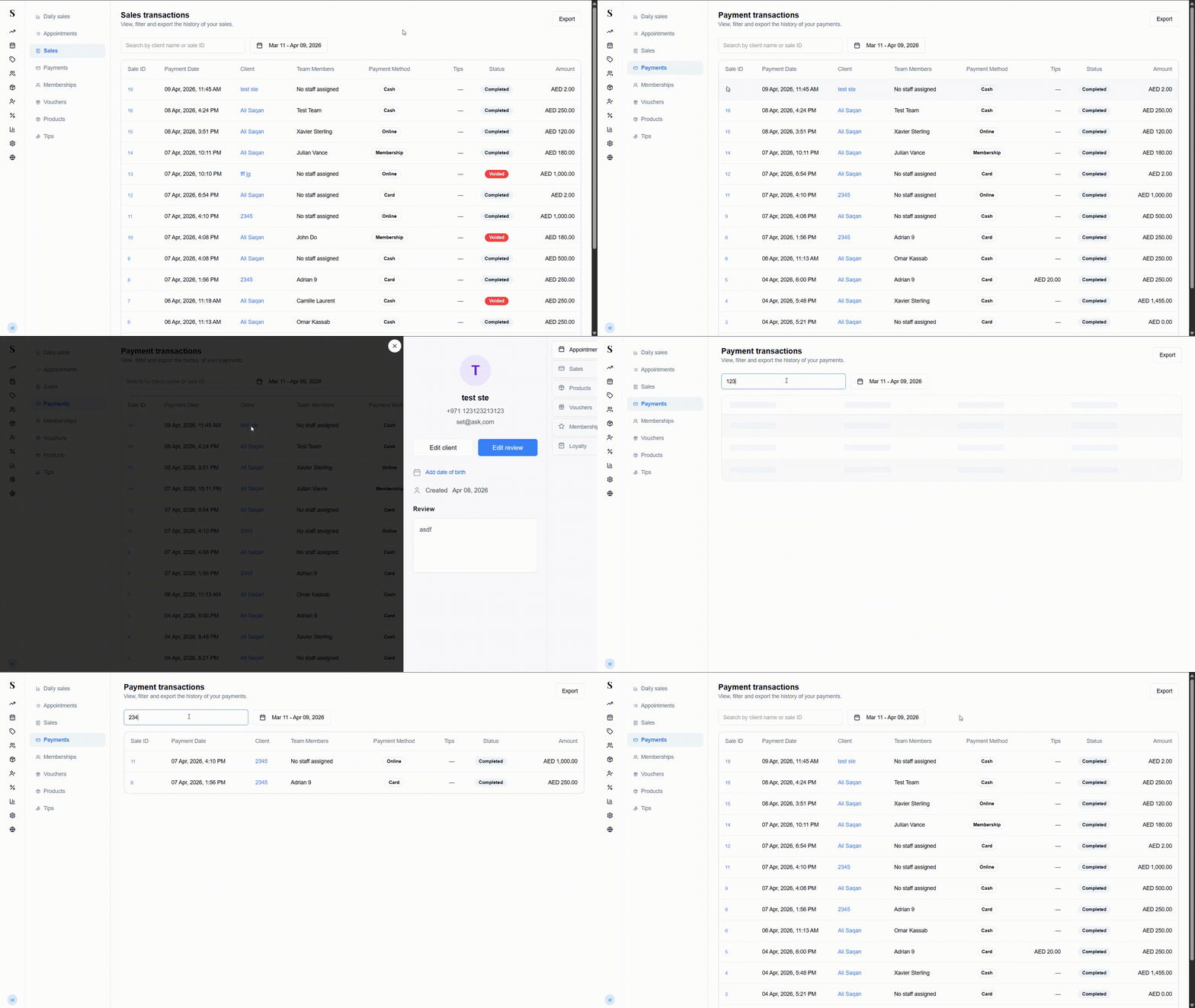
Every payment transaction that was successfully collected — similar to Sales Transactions but focused on the payment side only. Voided sales are excluded here.
Columns: Sale ID · Payment Date · Client · Team Members · Payment Method · Tips · Status · Amount
Tips show in the Tips column when they were added to the sale. Search by client name or sale ID, or filter by date range.
Memberships
Sales → Memberships
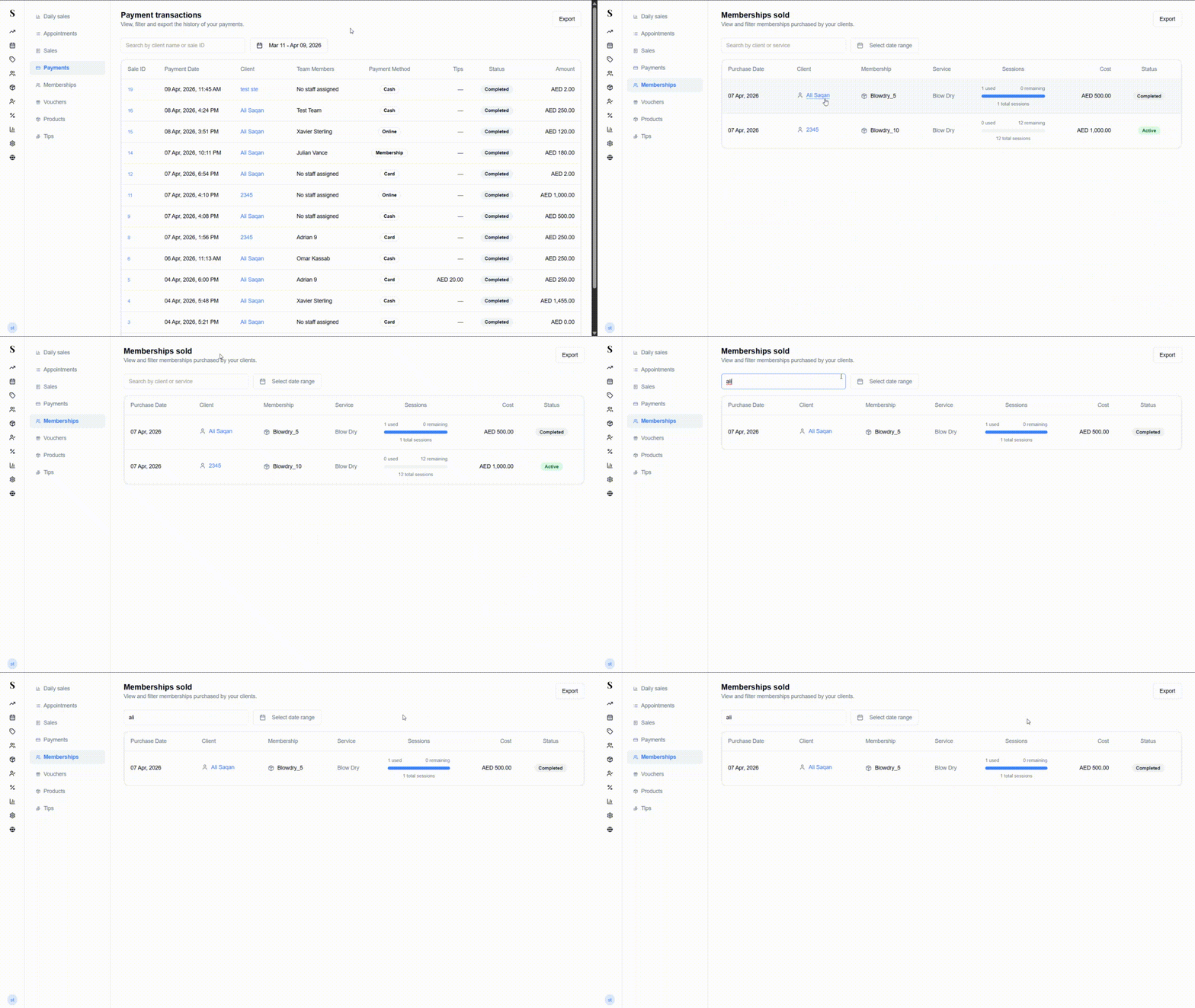
All membership packages that have been sold, with live session tracking.
Columns: Purchase Date · Client · Membership name · Service · Sessions (used / remaining with a progress bar) · Cost · Status
The Status shows either Active (sessions still available) or Completed (all sessions used). The progress bar makes it easy to see at a glance how far through a package a client is.
Vouchers
Sales → Vouchers
All vouchers that have been purchased or redeemed. Search by client name, voucher name, or voucher code. Filter by date range to narrow results.
Products
Sales → Products
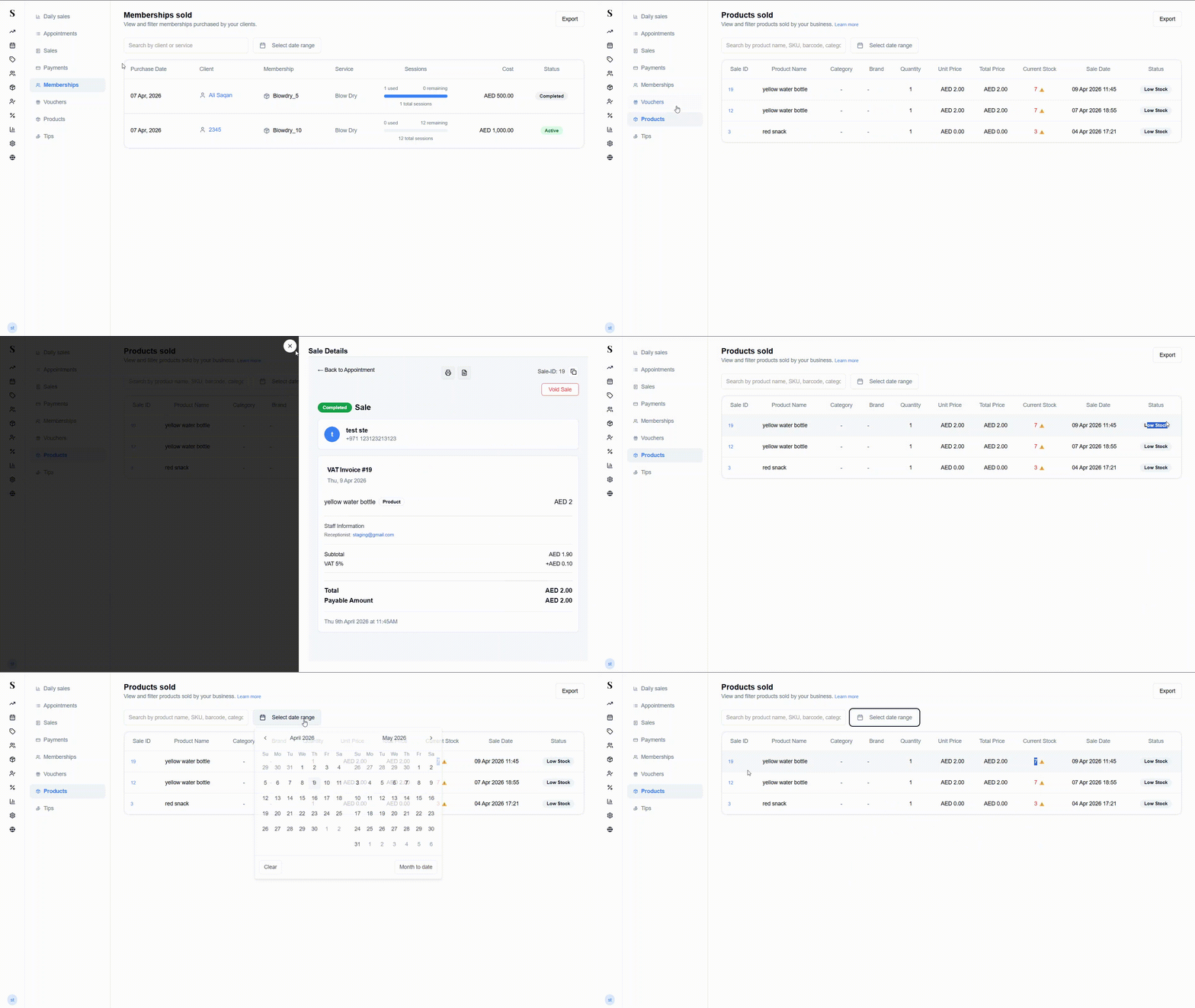
A record of every product sold, with live stock levels.
Columns: Sale ID · Product Name · Category · Brand · Quantity · Unit Price · Total Price · Current Stock · Sale Date · Status
The Current Stock column shows a warning icon (⚠) when stock is running low. The Status badge will show Low Stock to flag items that need reordering.
Search by product name, SKU, barcode, or category.
Tips
Sales → Tips
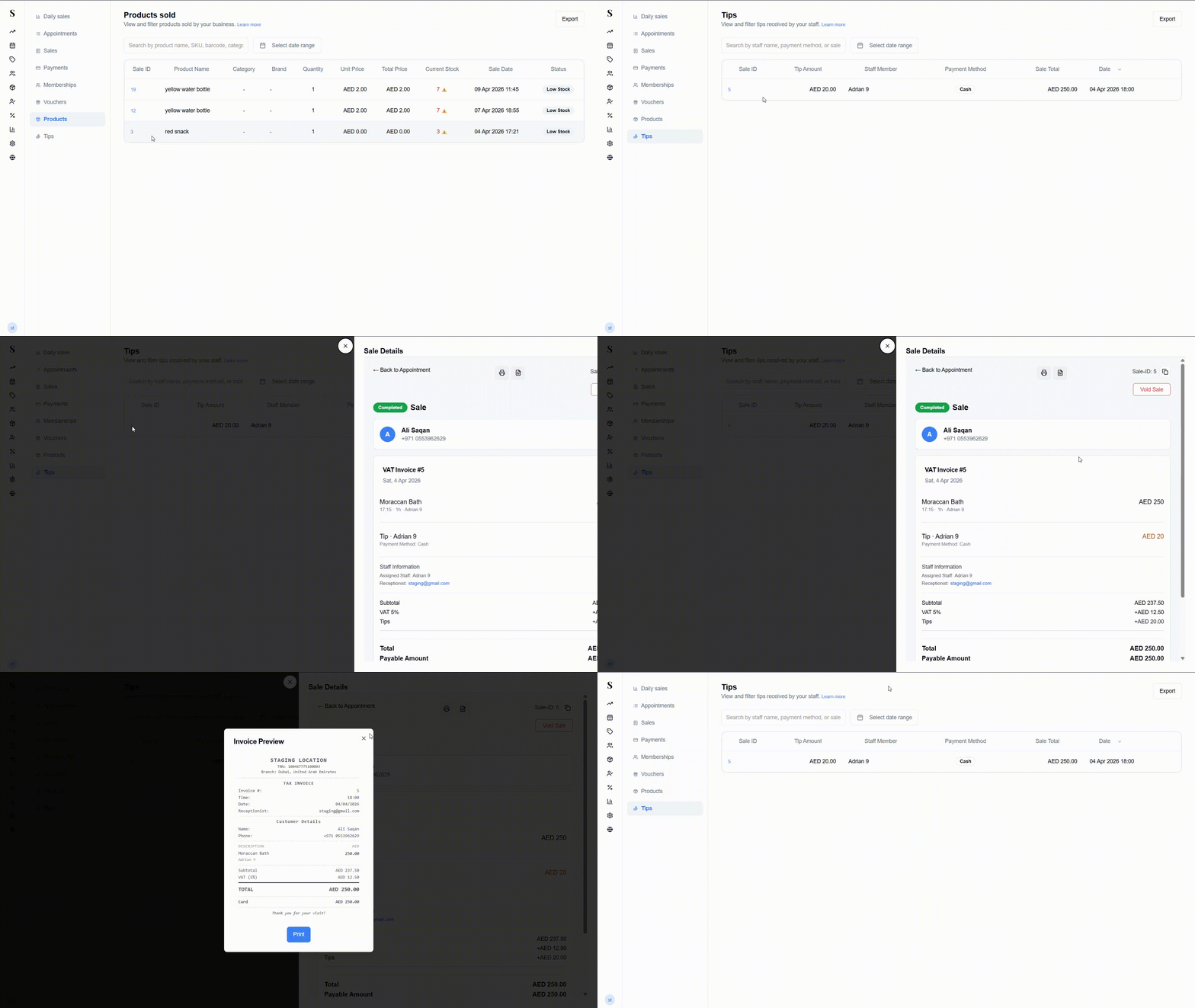
Every tip that's been collected, attributed to the staff member who received it.
Columns: Sale ID · Tip Amount · Staff Member · Payment Method · Sale Total · Date
Search by staff name, payment method, or sale ID. Filter by date range.
Expenses
Sales → Expenses
The Expenses section lets you log and track salon expenditures right from the POS.
- Internal Salon Expenses: Record daily operational costs such as refreshments (coffee, tea, bottled water), cleaning products, laundry, and equipment maintenance.
- Billable Appointment Items: Log specialty products or consumables used during a specific client's treatment.
- Supplier Intake Expenses: When you receive stock orders from suppliers, expense records can be created automatically linked to the supplier invoice reference.
Columns: Expense ID · Date · Category · Description · Supplier / Payee · Payment Source · Amount
Search by description or category, and export records for your accountant.
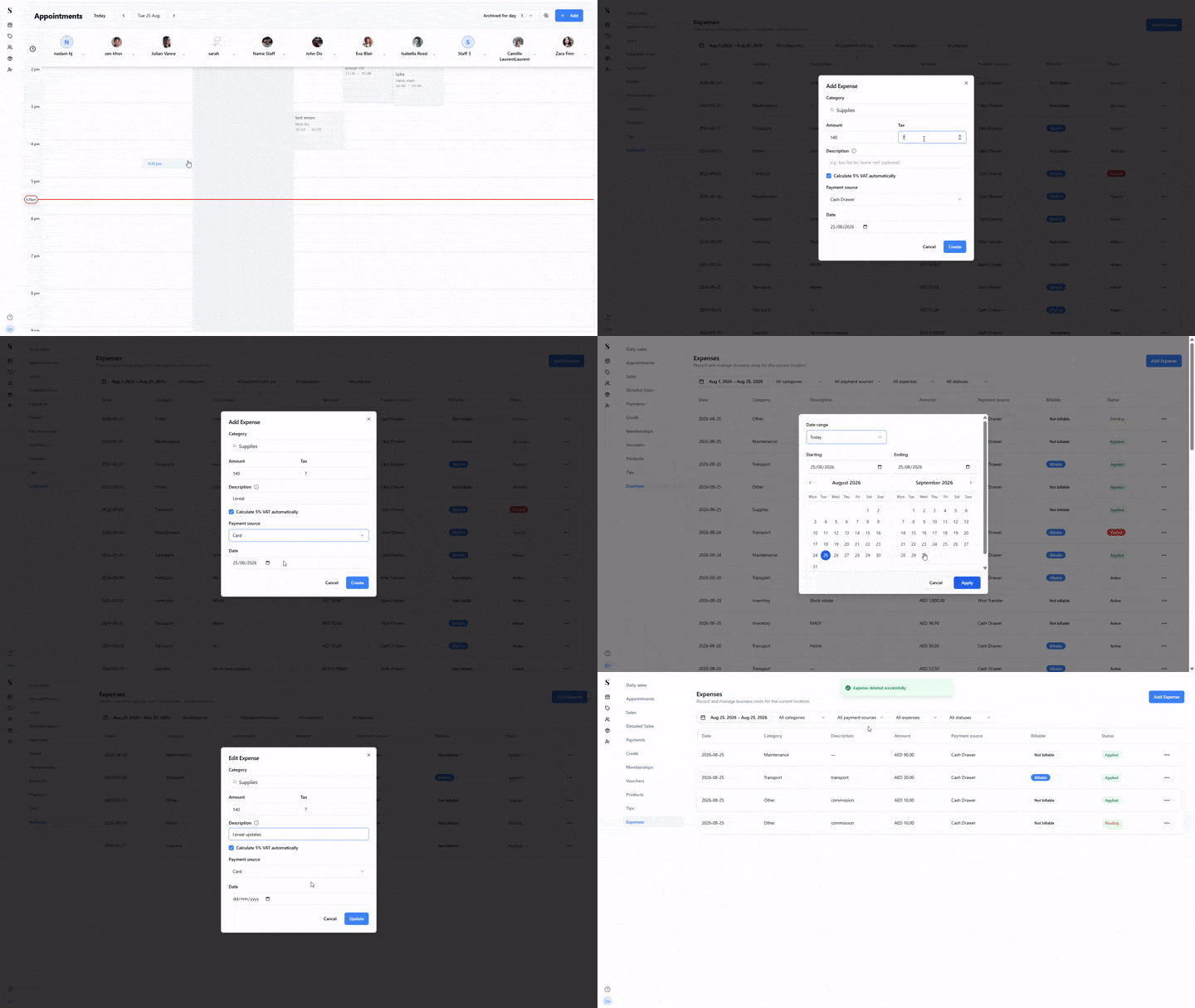
Creating an expense
Click Add Expense.
Choose a Category (e.g., Supplies) and enter the Amount.
Enter the Tax and a Description of the expense, or toggle Calculate 5% VAT automatically to have NxCut work out the tax for you instead of entering it by hand.
Choose the Payment source (e.g., Card, Cash) and the Date of the expense.
Click Create.
Outstanding Clients
Sales → Outstanding Clients
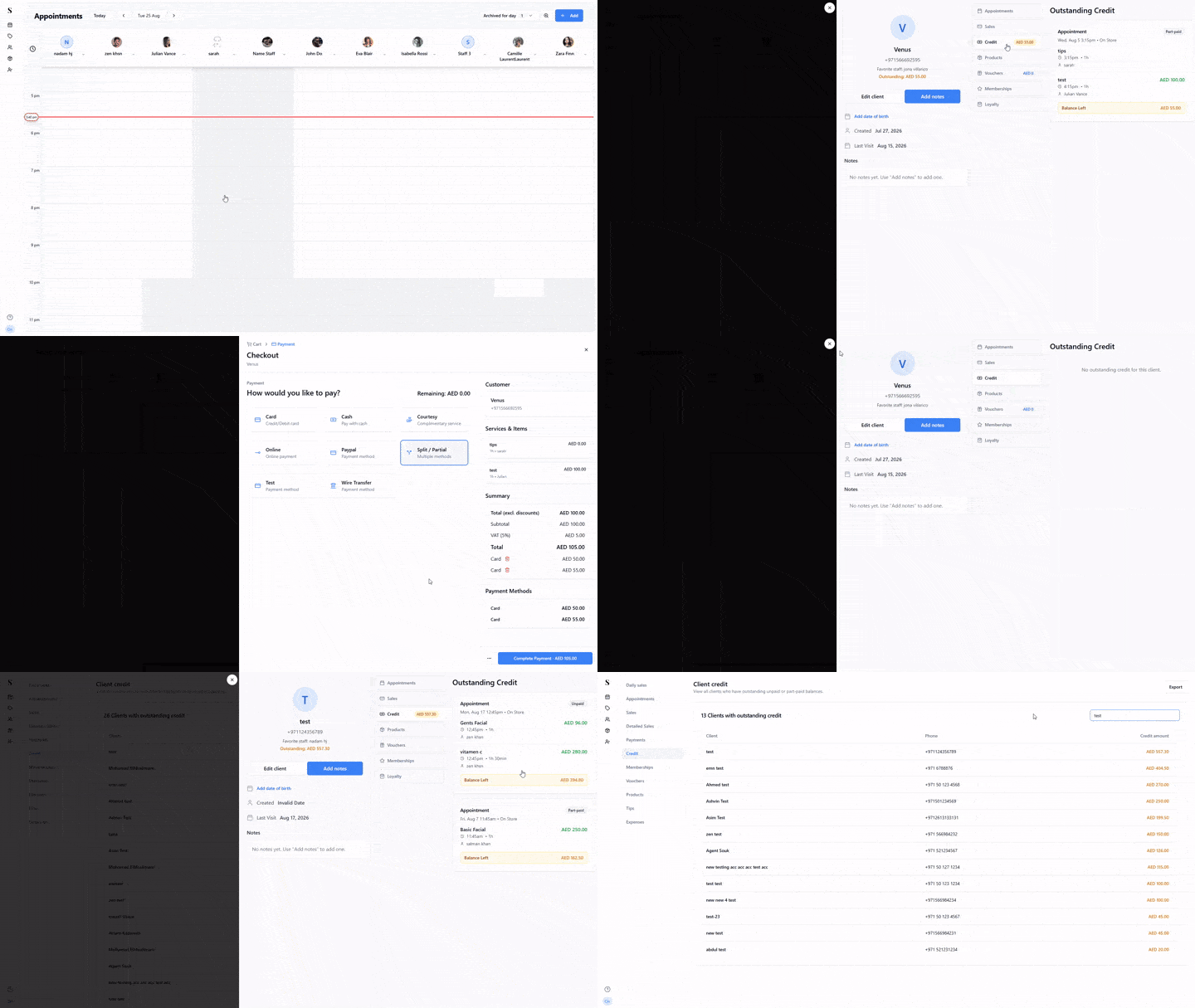
Track clients who have an outstanding balance from unpaid or part-paid appointments. The Client credit screen shows a live count of how many clients currently have outstanding credit.
- View who owes money at a glance, along with their contact phone number and outstanding credit amount.
- Search by client name or phone number to quickly find a specific balance.
- See the date of the original visit, total amount billed, deposit/amount paid so far, and the remaining balance.
- When the client comes back for their next visit, settle the remaining balance directly in checkout.
Client Profile
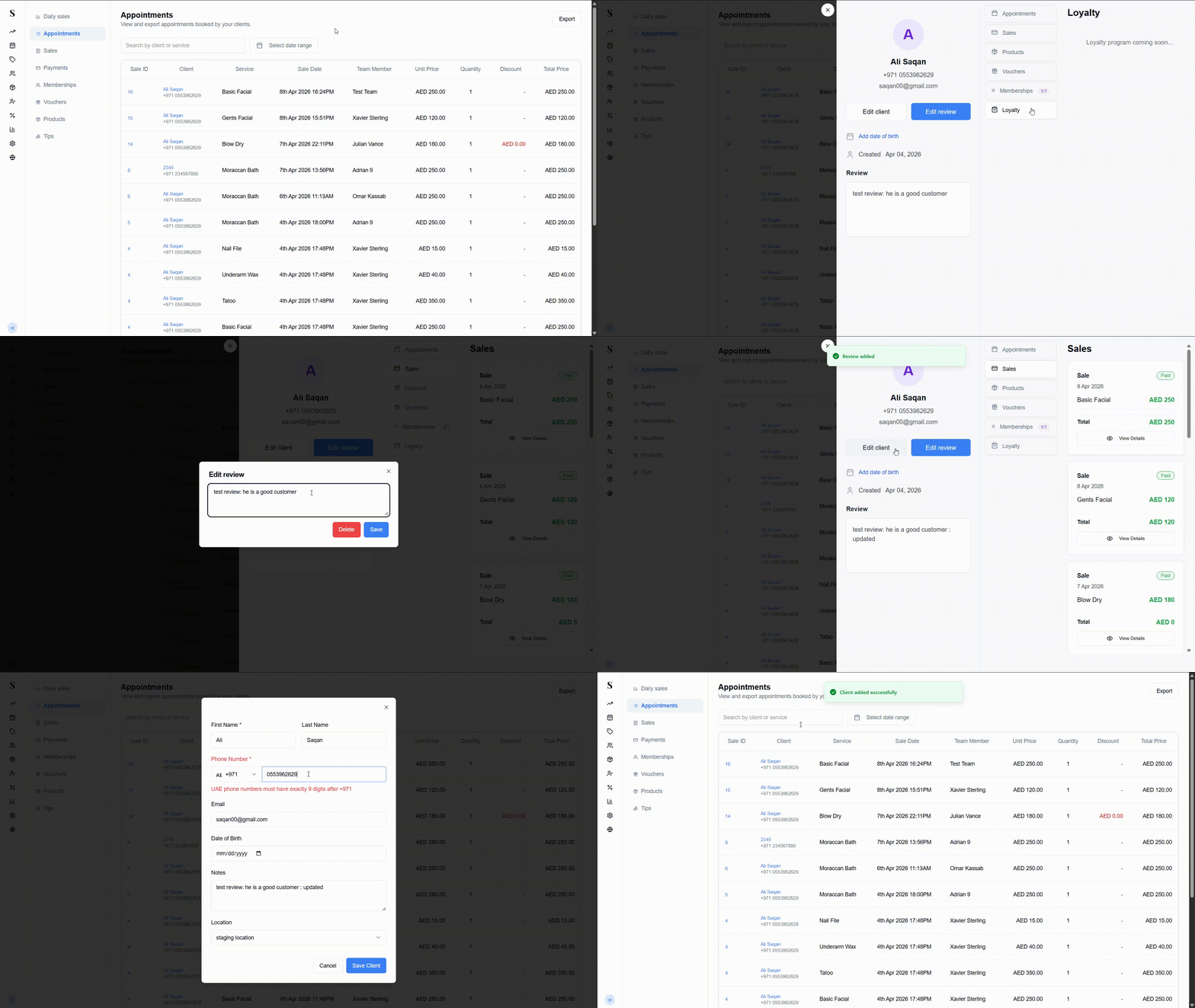
Anywhere you see a client name shown as a blue link (in Sales Transactions, Payments, etc.), you can click it to open that client's full profile in a panel on the right.
The profile is split into two parts:
Left — Client details
- Name, phone, and email
- Edit client — update their contact details
- Add review — add an internal note or review about the client
- Date of birth (optional)
- Date the client was created in the system
Middle — Navigation tabs Switch between different views of the client's history:
| Tab | What it shows |
|---|---|
| Appointments | All appointments with status badges (Paid, Scheduled, No Show) |
| Sales | All completed sales with service, total, and a View Details button |
| Products | Products purchased by this client |
| Vouchers | Vouchers associated with this client, expiry dates, and last used timestamps |
| Memberships | Active and completed membership packages (shows count badge) |
| Loyalty | Loyalty programme activity and privilege cards |
Right — Detail view Clicking any item in the tabs shows the full detail on the right side. For example, clicking a sale shows the service, time, staff, subtotal, VAT, and total.
Sale Details
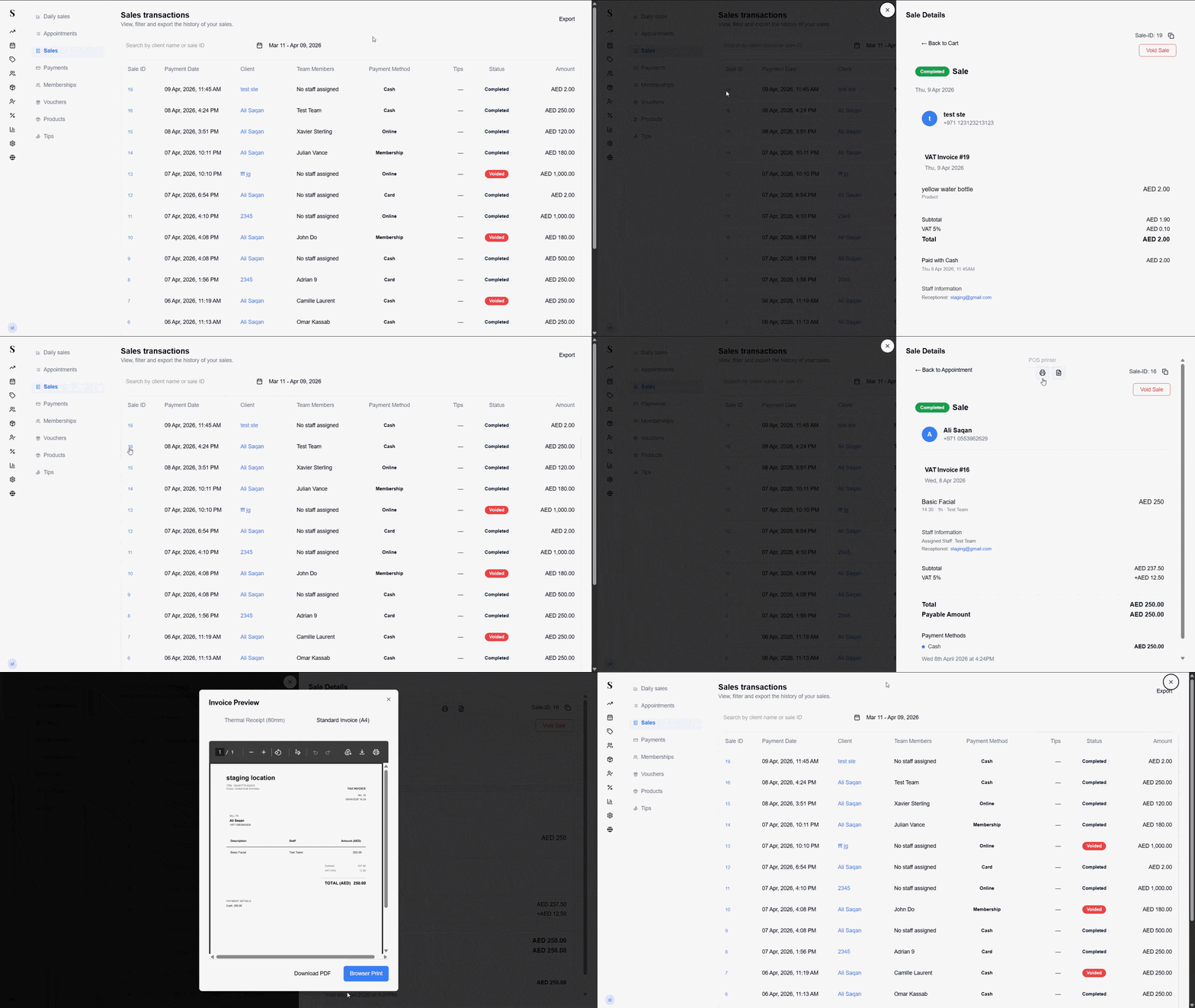
Clicking a Sale ID or View Details anywhere in the Sales Hub opens the full Sale Details panel. This shows:
- Status badge (e.g., Completed)
- Client name and phone
- VAT Invoice number and date
- Services performed with time, duration, and assigned team
- Staff Information — assigned staff member and receptionist
- Subtotal, VAT (5%), and Total
- Print icons — print as thermal receipt or standard A4 invoice
- Sale-ID (copyable)
- Void Sale button — reverses the transaction if an error was made
- Back to Appointment button — returns to the linked appointment
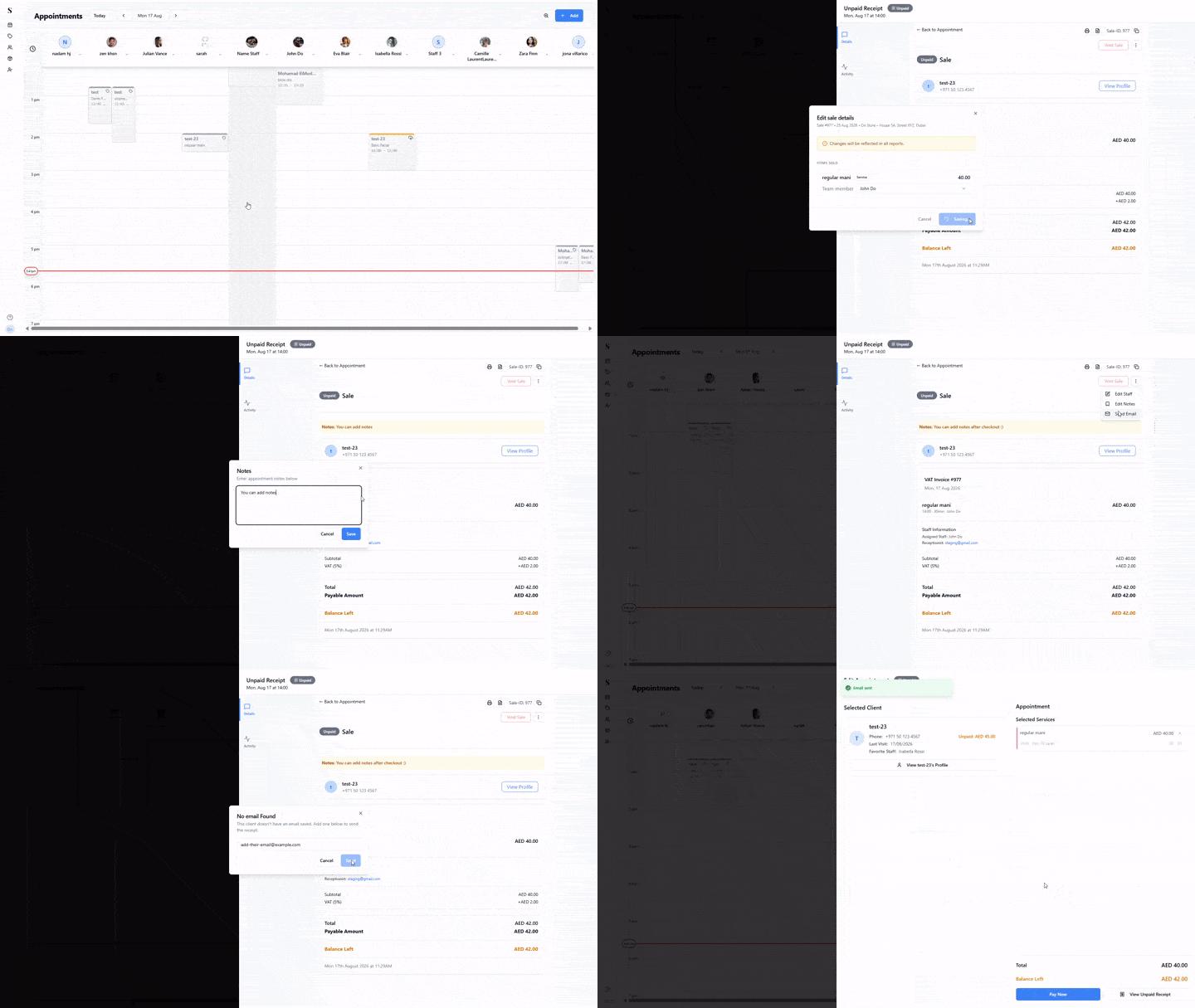
Action Menu (···)
In the top right corner of the Sale Details panel, click the horizontal dot menu (···) for extra post-sale actions:
- Reassign Staff: Correct the staff member credited for a service or tip if the wrong stylist was selected at checkout. Changes are reflected in all reports.
- Add / Edit Notes: Update appointment notes and client feedback after the sale is closed.
- Email Receipt: Instantly email an itemized PDF copy of the receipt to the client. If the client doesn't have an email on file yet, a dialog lets you add one on the spot before sending.
Voiding a sale cannot be undone. Only use this if there was a genuine error with the transaction.
Quick reference
| What do you want to do? | Go to |
|---|---|
| See how much money came in today | Daily Sales |
| Look up a specific appointment or service | Appointments |
| Find any sale (including cancelled ones) | Sales Transactions |
| See what payments were collected | Payments |
| Check how many sessions a client has left on their package | Memberships |
| Look up a gift card or discount code | Vouchers |
| See what products were sold and how much stock is left | Products |
| See who got tips and how much | Tips |
| Record salon expenses (supplies, refreshments, maintenance) | Expenses |
| See clients with unpaid or part-paid balances | Outstanding Clients |