Suppliers
Manage your suppliers, search their catalogs, upload quotes, and reconcile stock intake
The Suppliers section is where you manage your product suppliers — search their catalogs, upload supplier quotes, create purchase orders, and reconcile stock intake against what you ordered.
Click Suppliers in the left menu to get started.
The Suppliers feature is currently in Beta. Some functionality may evolve as we gather feedback.
Finding a supplier
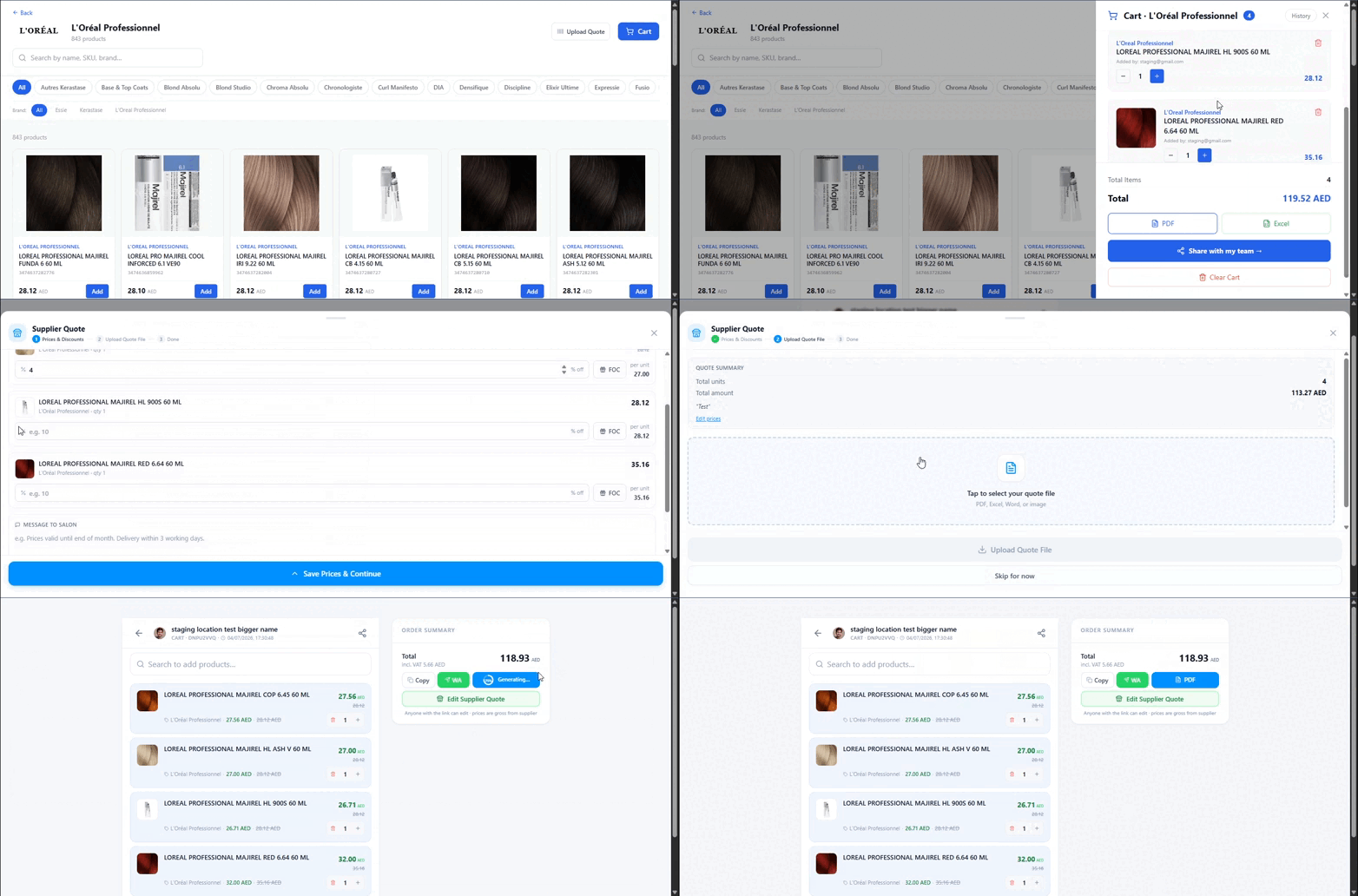
The main Suppliers page shows a searchable catalog of suppliers. You can:
- Search by supplier name to find what you need
- Type free-text — the autocomplete will match as you type, no need to pick from a predefined list
- Filter by brand to narrow down suppliers that carry specific brands
In supplier public carts, search queries are pre-filtered and scoped specifically to that supplier's available catalog.
Browsing a supplier's catalog
When you click on a supplier, you'll see their product catalog including:
- Product names and images
- Brand information
- Available quantities and pricing
- A photo thumbnail for quick visual identification
Use the supplier catalog to compare products and prices before placing an order.
Purchase Orders (PO) & Shared Cart
When you've selected products from a supplier's catalog, you can create a purchase order. Products added to a PO cart will show:
- Product name and photo
- Quantity ordered
- Unit price and cost calculations
- Total value
Branch Stock Visibility: The PO cart displays live stock levels for each branch. This allows managers to see how much inventory each branch has before placing group orders. Shared cart sessions also let multiple staff collaborate on the same order.
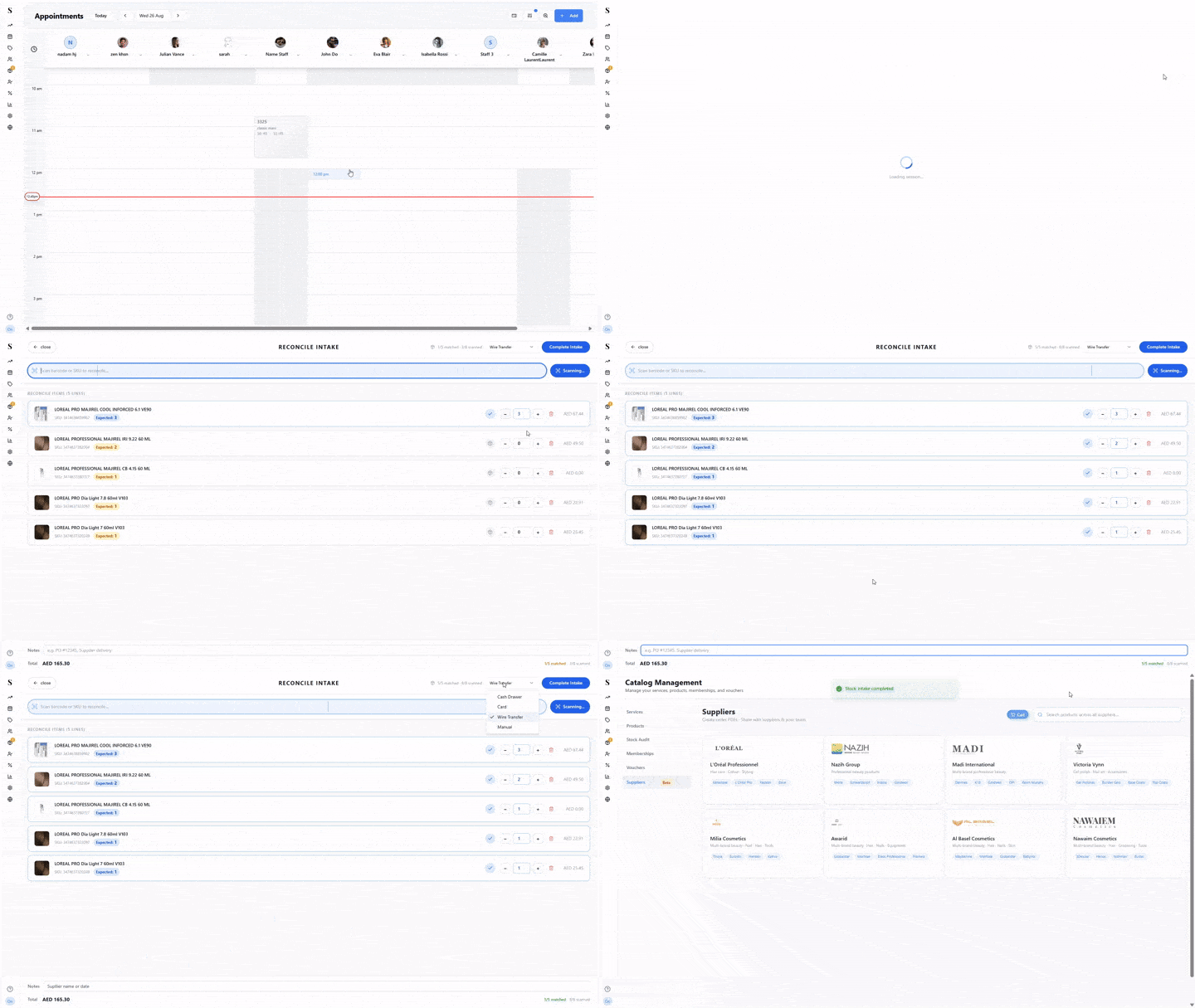
When you're ready to receive the order, open Reconcile Intake: scan each item's barcode or SKU, adjust the received quantity against what was expected, and pick a payment source (Cash Drawer, Card, Wire Transfer, or Manual) before clicking Complete Intake.
Supplier Quotes
Instead of entering prices manually, you can upload a supplier's quote directly.
Uploading a quote
Navigate to the supplier's page.
Click Upload Quote and select the file from your computer.
The system will read the quote and populate the products and pricing automatically.
Updating a quote
If a supplier sends a revised quote, you can update it at any time — just upload the new version and it will replace the existing one.
Reconciling Stock Intake & Automatic Expenses
When you receive a delivery from a supplier, use the Reconcile feature to compare what was ordered against what actually arrived.
Go to Catalog → Stock Audit and start or open a stock intake session.
Click Reconcile to open the reconciliation dialog.
The dialog shows the supplier's quote side-by-side with your stock intake quantities.
Review any discrepancies — items that were short-shipped, over-delivered, or missing entirely.
Confirm the reconciliation to update your stock levels.
Automatic Expense Records: When stock intake is confirmed, NxCut automatically generates an expense record in Sales → Expenses linked to the supplier reference number, keeping your inventory accounting and profit tracking completely in sync.
If you scan a barcode that isn't in the system yet, a New product detected! dialog opens on the spot — fill in the product name, supplier/cost price, sell price, category, and measure type to create it without leaving the intake flow.
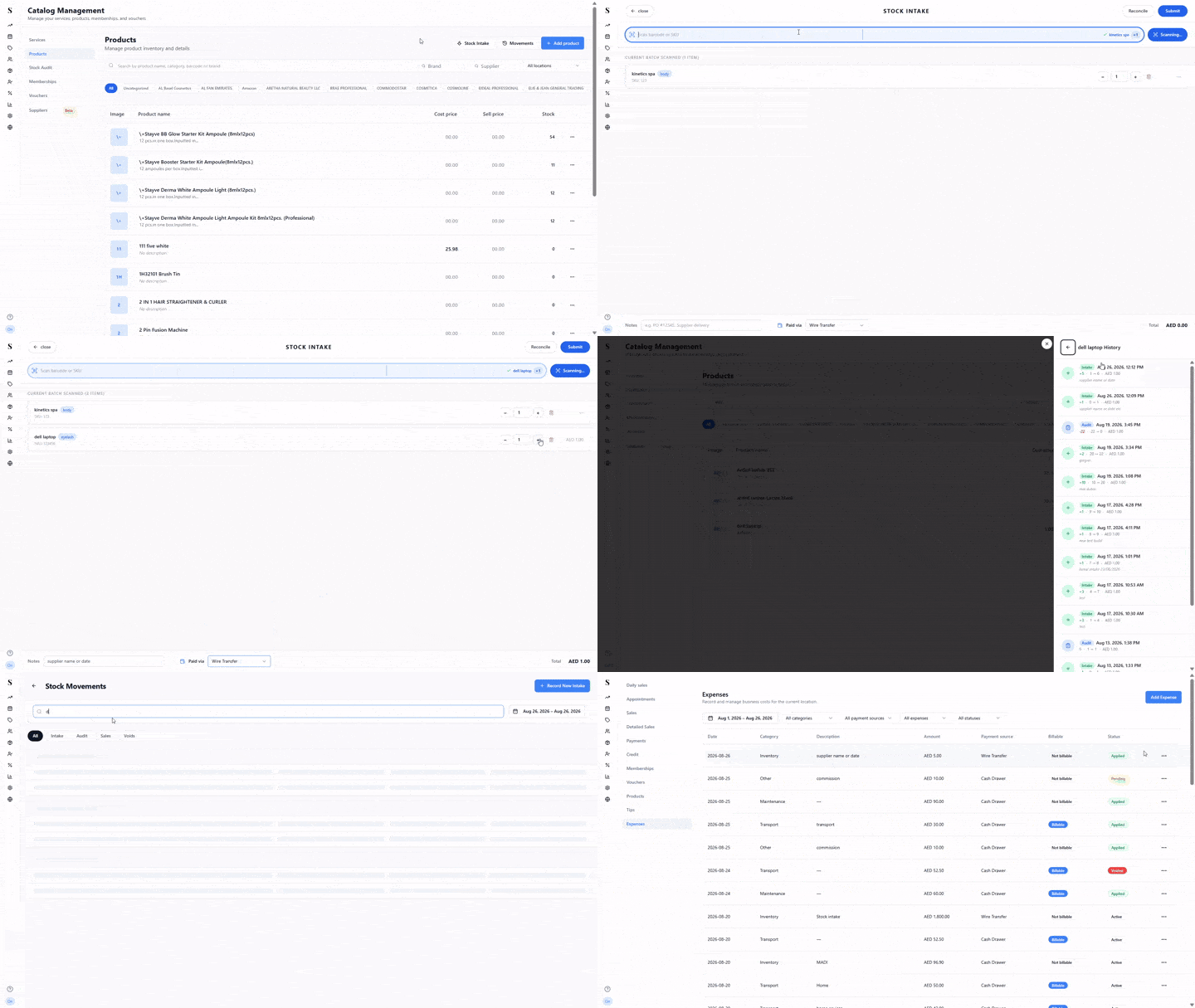
Every intake, audit, sale, and void is logged in a searchable Stock Movements history, with tabs to filter by type and see the date, product, SKU/barcode, quantity change, and resulting total for each entry.
Batch Tracking & Intake History
Every stock intake is recorded in your Intake History:
- Batch Tracking: Track batch numbers, received quantities, cost subtotals, and delivery dates.
- Search & Filters: Search previous intakes by supplier, date range, or product name.
- Intake Notes: Review delivery notes and receiver comments logged by your inventory team.
Product Management integration
Suppliers are connected to your product catalog. When browsing your products in Catalog → Products, you'll see:
- Brand and supplier filters — quickly find products by which supplier carries them
- Cost price displayed alongside the selling price
- Stock levels that update automatically when you reconcile intake
Quick reference
| What do you want to do? | How? |
|---|---|
| Find a supplier | Use the search bar on the Suppliers page |
| Browse a supplier's products | Click on the supplier's name |
| Check stock per branch while ordering | View branch stock numbers inside the PO cart |
| Upload a supplier quote | Open the supplier and click Upload Quote |
| Reconcile a delivery | Go to Stock Audit and use the Reconcile dialog |
| Track delivery batches | View Intake History with date filters and batch numbers |
| Filter products by supplier | Use the brand/supplier filters in the Products page |
| See what a product costs you | Cost price is shown on each product listing |